Your SBCX Directory Profile helps government buyers and other vendors find your business. Keeping it updated improves visibility in search results and supports teaming, subcontracting, and market research efforts.
What You’ll Learn
- Who can update your SBCX Directory Profile and how to get access
- How to find and open your business profile in SBCX
- Which fields you can edit
- Tips for keeping your profile current and accurate
Who Can Update the Profile?
Access to the Manage My Business section is managed by your company's official SAM.gov Point of Contact (POC). If you are registered but cannot see this section, your SAM POC must log in and activate your account within the User Management tab of SBCX.
Learn more: SBCX Business Registration Process
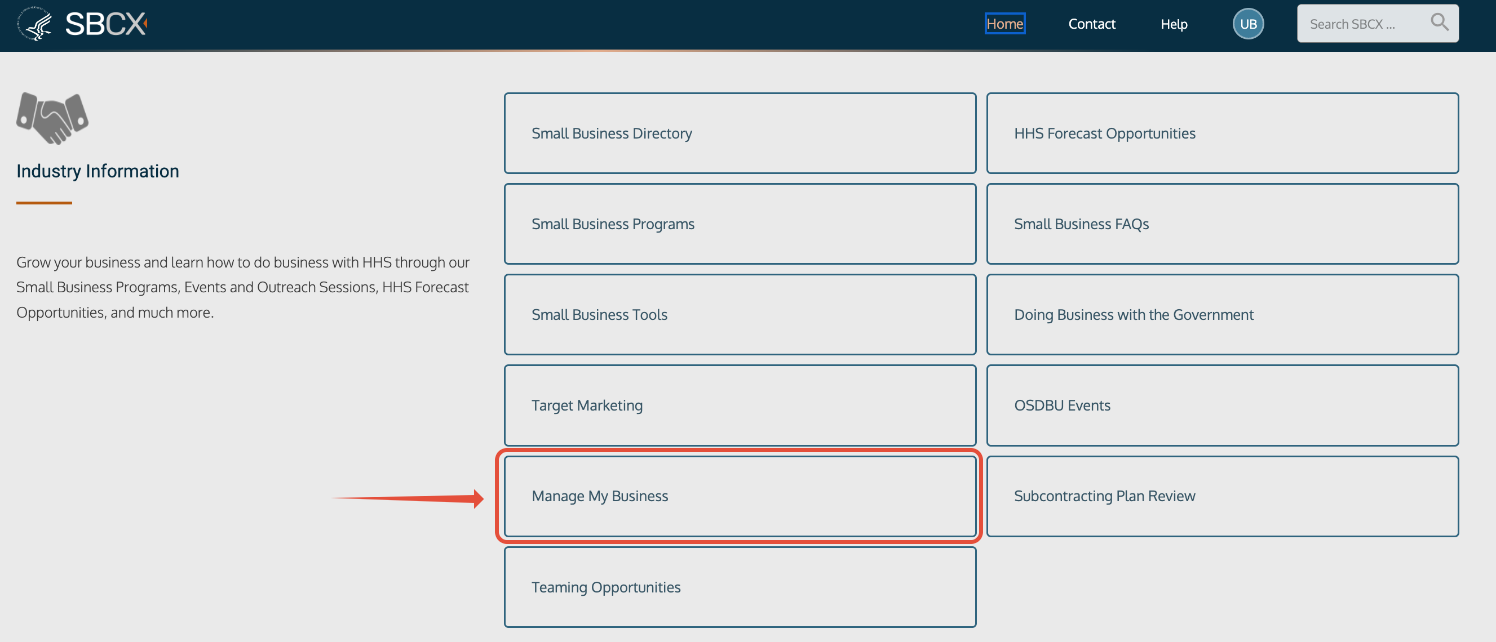 Figure 1. SBCX Industry Information section for logged-in users
How to Access Your Directory Profile
- Log in to SBCX
Go to https://mysbcx.hhs.gov and sign in. - Open Manage My Business
Select Manage My Business from the Industry Information section. - Choose the Capabilities tab
View or edit business details that are searchable in the Directory.- Add Branding Details: Use the Capabilities tab to upload your company logo and a formal Capability Statement (PDF).
- Add Targeting: You can also select up to three targeted HHS divisions to signal which organizations you are most interested in working with.
- Add Branding Details: Use the Capabilities tab to upload your company logo and a formal Capability Statement (PDF).
- Past Performance Tab
This section displays your company’s federal award history, which is automatically sourced from USAspending.gov (data available since FY08). Note that this data is read-only; if your recent performance is missing, it may be due to the external sync cycle from USA Spending.
- Consent & Teaming
Use this tab to opt-in to Teaming Opportunities. By providing consent, you allow other vendors to see your contact information and capability statement, facilitating partnerships for upcoming HHS work.
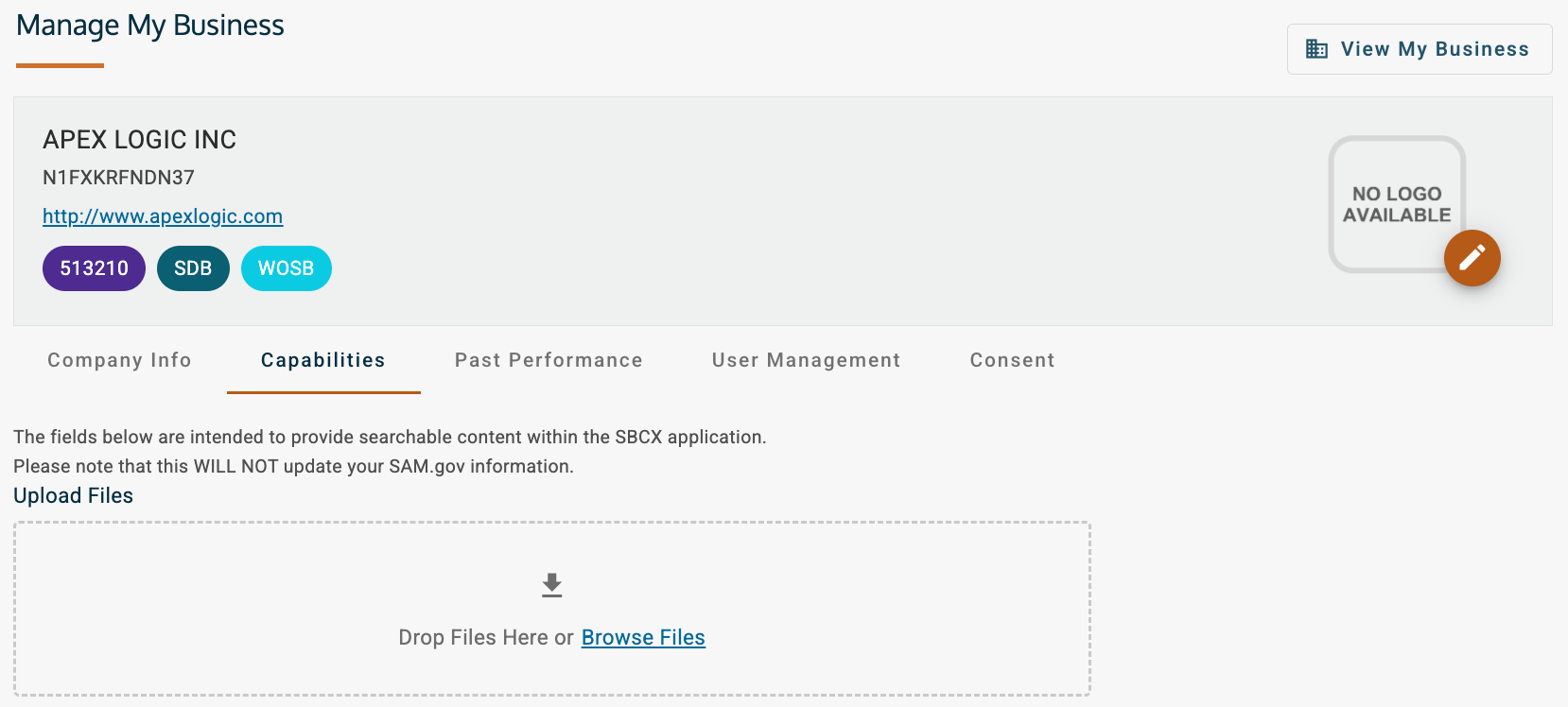
Figure 2. The Capabilities section allows for company branding and supporting documents
What You Can Update
Some fields come from SAM.gov and are read-only. You may edit the following fields in SBCX:
Data such as your UEI, CAGE code, and socioeconomic status are synced directly from SAM.gov and cannot be edited in SBCX.
- Step 1: Update your profile at SAM.gov.
- Step 2: Wait 24-48 hours for the SAM system to go live.
- Step 3: Submit a ticket to the SBCX Help Desk to request a manual refresh of your profile data.
Save and Confirm
- After making updates, select Save.
- Your changes will update immediately in the SBCX Directory.
Tip: Review your profile every 3–6 months to keep it current. User accounts are disabled after 90 days of inactivity.
Need Help?
Submit a ticket to the SBCX Help Desk
Was this article helpful?
That’s Great!
Thank you for your feedback
Sorry! We couldn't be helpful
Thank you for your feedback
Feedback sent
We appreciate your effort and will try to fix the article